

Managing bots
Movement panel and block placer
Use the Movement tab in the console to walk, jump and sneak; start farm modules with one click; place blocks with the 3D grid.
Last updated: October 29, 2026
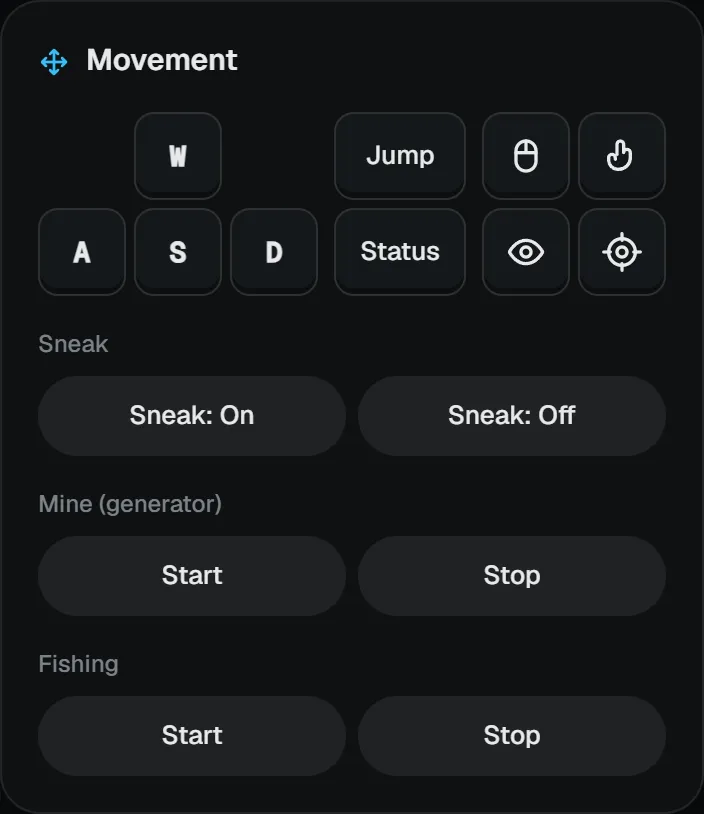
The Movement tab in the right column turns common console commands into buttons:
- W A S D: the bot walks one block forward, left, back or right relative to where it faces.
- Jump and Status: jumps / prints position and state to the console.
- Mouse icons: left and right click. Eye icon: look direction. Target icon: face the nearest entity.
- Sneak: On / Off: turns sneaking on or off.
- Mine (generator) and Fishing: start or stop that module.
3D block placer
With the block placing module on, a Place block tab appears in the right column. Click a cell on the 3D grid and the bot places its held block there. With the cactus farm module on, a Cactus tab appears too; save the corner coordinate there and start or stop the farm from it.
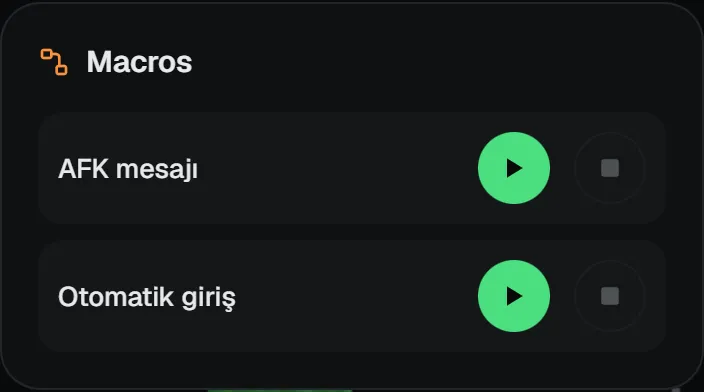
Macros assigned to the bot with "show in console" ticked are listed in the macro row under the message box, with ▶ / ■ buttons.